How to Configure Frame Size, Columns, Rows, and Alignment
A clean sprite sheet starts with predictable cell dimensions. Every 2D game engine reads uniform sheets by dividing the image into equal rectangular cells, so picking the right frame width and height before you export saves hours of pivot debugging inside Unity, Godot, or Phaser. In Auto mode, this Sprite Sheet Maker measures the widest and tallest uploaded frame and sizes every cell to match without cropping a single pixel. If your game enforces a strict logical grid—such as 16×16 for retro tiles, 32×32 for top-down RPG characters, or 64×64 for action platformers—switch to Fixed pixel grid mode and enter your exact dimensions.
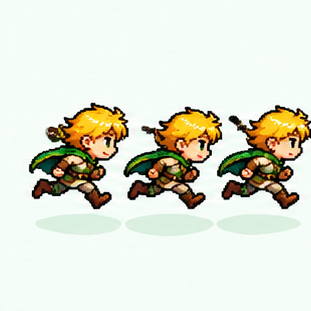
Columns and rows control both texture shape and animation readability. For a single animation clip like a 4-frame idle or 6-frame run cycle, setting Columns equal to the frame count produces a single horizontal strip that engines can slice with one row parameter. For multi-state character sheets—such as idle on row 1, walk on row 2, jump on row 3, and attack on row 4—choose a column count that matches your longest cycle so every row aligns cleanly on the same X offsets. Staying within power-of-two texture bounds (for example 256×256, 512×512, or 1024×1024) also reduces GPU memory waste on mobile and WebGL targets.
Frame alignment matters just as much as cell size. Characters whose helmets, capes, or raised swords change height across frames will appear to float or sink if centered vertically. Choosing Bottom Center alignment locks every character’s feet onto the exact same baseline pixel across the entire strip. By contrast, circular explosions, projectiles, and floating pickup icons look best with Center alignment so their visual mass stays anchored to the sprite origin.
Padding (Cell Spacing)
Add 1–2 px of transparent padding between cells if your engine uses mipmaps or linear filtering, preventing neighboring frame colors from bleeding across UV borders. Keep padding at 0 px for strict integer pixel art rendered with Point/Nearest filtering.
Outer Margin
Use 0 px outer margin for standard grid slicers like Godot Sprite2D hframes/vframes and RPG Maker character sheets. Add an outer margin only when your target pipeline expects uniform border extrusion around the entire atlas.
Nearest-Neighbor Fidelity
All compositing inside MkSprite runs with imageSmoothingEnabled disabled so crisp pixel outlines and binary alpha transparency remain untouched from upload to final PNG download.
Exporting Game-Ready PNG Sprite Sheets and Atlas JSON
When you finish arranging frames and verifying playback speed in the live animation preview, export both sprite-sheet.png and atlas.json. The PNG file is a lossless 32-bit RGBA texture with full alpha transparency and zero compression artifacts. The accompanying JSON manifest records each frame’s filename, exact x and y pixel coordinates, cell width and height, and total atlas dimensions in the standard TexturePacker / Phaser 3 JSON Hash structure.
Because different 2D engines expect slightly different import settings for pixel art, configure texture filtering immediately after dropping your exported sheet into your project. Leaving bilinear smoothing or lossy texture compression enabled is the single most common reason crisp sprite sheets look muddy inside a running game.
Phaser 3
Load both files directly with this.load.atlas("hero", "sprite-sheet.png", "atlas.json") or load uniform grids with this.load.spritesheet("hero", "sprite-sheet.png", { frameWidth, frameHeight, margin, spacing }). Enable pixelArt: true in your Phaser game config.
Godot 4
Import sprite-sheet.png, set Default Texture Filter to Nearest on your CanvasItem or project rendering settings, attach the texture to a Sprite2D or AnimatedSprite2D, and set Hframes and Vframes to match your Columns and Rows.
Unity 2D
Set Texture Type to Sprite (2D and UI), Sprite Mode to Multiple, Filter Mode to Point (no filter), Compression to None, and Pixels Per Unit to match your logical tile size. Open Sprite Editor and slice by Grid By Cell Size using the exact frame width, height, padding, and margin shown in the preview.
GameMaker & RPG Maker
In GameMaker, import the horizontal strip via Image → Import Strip Image and enter your frame count and cell dimensions. In RPG Maker, pack 3-column × 4-row character walks at 0 px padding with Bottom Center alignment so footfalls stay locked to the tile grid.
When to Use a Sprite Sheet Maker vs. a Sprite Sheet Splitter
Game artists and indie developers constantly move in both directions between individual frame files and packed atlases. A Sprite Sheet Maker combines separate PNG frames—drawn in a pixel editor, rendered from 3D/2D animation software, or exported from an AI character pipeline—into a single GPU-friendly texture sheet. Packing frames into one sheet cuts draw calls, simplifies engine asset loading, and guarantees every animation state shares a consistent baseline and cell grid.
A Sprite Sheet Splitter does the exact opposite job: it takes an already packed sprite sheet and slices it back into individual numbered PNG files. You need a splitter when you download a community asset pack, want to recolor or hand-edit a single frame in an external editor, or need to remove duplicate frames before repacking a lighter sheet. Together with Pixel Art Fixer (for cleaning blurry edges and capping palettes) and Sprite Recolor (for generating instant enemy or outfit palette swaps), these browser-local utilities form a complete round-trip 2D sprite workflow without leaving your browser or uploading unreleased game art to remote servers.
Sprite Sheet Maker FAQ
Is this online Sprite Sheet Maker completely free with no watermark?
Yes. Packing frames, previewing animations, and downloading both sprite-sheet.png and atlas.json run 100% locally in your browser at 0 credits with no signup and no watermarks.
Are my uploaded sprite frames sent to a server?
Never. All image decoding, canvas compositing, animation playback, and PNG/JSON generation happen strictly inside your browser memory using HTML5 Canvas APIs.
What happens if my uploaded frames have different widths or heights?
In Auto cell mode, the Sprite Sheet Maker calculates the maximum width and height across all frames and places each frame inside uniform cells according to your chosen alignment (Bottom Center, Center, or Top Left) without stretching or distorting pixels.
Should I use 0 px padding or add spacing between frames?
For crisp pixel art rendered with Nearest/Point filtering, 0 px padding keeps grid math simple for Godot, Unity, and Phaser. Add 1–2 px padding if your game scales sprites with bilinear filtering or mipmaps to avoid color bleeding from adjacent frames.
How is this different from the Sprite Sheet Splitter?
Sprite Sheet Maker packs multiple individual frame images into one combined sprite sheet PNG and Atlas JSON, whereas Sprite Sheet Splitter slices an existing combined sprite sheet into separate single-frame PNGs.